
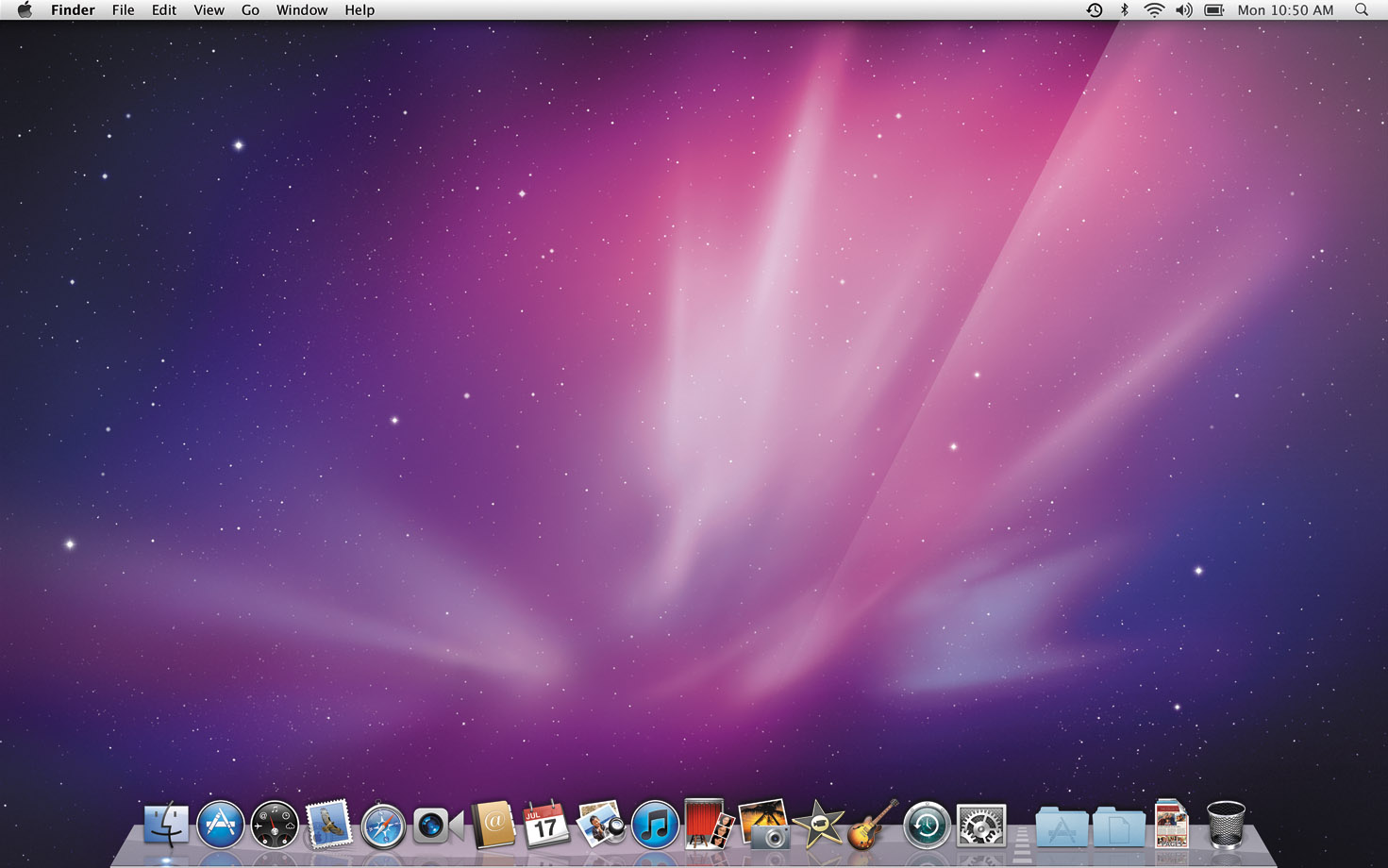
Capturing a mac screenshot is an easy way of sharing what you are viewing on your screen. This helps you to snap any action on screen in case of any technical problems you can get assistance according to what the screenshot displays.
Mac screenshot is easy to take if you know the right keyboard shortcuts to use. Since the issue of Mojave macOS has an inbuilt screenshot tool that similar to that of windows allowing you to take a snap simply by clicking a button.
Some of the shortcuts are listed below:
- To open the screenshot tool: one can opt to click launchpad >other>screenshot, or you can use a shortcut shift+command+5. This gives you the advantage to take a screenshot of either the entire screen or a custom segment. It also allows capturing a recorded video including a full or a segment of the screen. Once you know how to do it then things will become much better and you will not have any issues so what are you waiting for?
- To take a screen grab of the entire screen: one can capture a snapfrom the screenshot tool, or use the shortcut Shift+Command+3. The screenshot automatically will be saved as a .png file on your desktop.
- To capture a specific part of your screen: press Shift+Command+4and your pointer will convert to a cross-hair. Click and drag the cross-hair to cover the area you want to capture. Release to grasp the chosen area or press the Esc key to cancel. By clicking down Shift, Option, or Space Bar, you can convert the shape, size, and position of the chosen area before capturing an image. The screenshot will autosave as a .png file on the desktop by default.
- To take a screenshot of a particular window or menu: press Shift+Command+5 and the pointer will convert into a camera icon. Scroll the camera over a window to highlight it and click to save the image as a .png file on your desktop. You can also click back and forth between capturing a custom selection and grabbing a given menu by hitting the space bar.
Having a Mac with a Touch Bar enables you to take a screenshot of it by pressing Shift+Command+6. The image is saved as a .png file on your desktop.
- Screenshots are saved to your desktop by default: Mac has tools that allow you to can change the auto-saved images. To perform this task, one should Open the screenshot tool by clicking on Shift+Command+5, or navigate to Launchpad > Other > Screenshot > Options. On the menu section Save to, you can choose a new default location, such as Documents, Clipboard, Mail, Preview or Messages. Or you can click Other Location to select a defined folder.
- To clip your images on your computer: Instead of auto-saving images directly to your computer, one can save them directly to the clipboard by adding the Control key to any shortcut command. For example use Shift+Command+Control+3to capture a full screen, or Shift+Command+Control+4 to capture a screenshot of a segment of the screen. You can then paste the screenshot where you want it to be saved.
- Replace image format: by default, images on Mac are saved as .png files; hence they can get pretty big, mainly if you have a large Retina display monitor. With a small amount of coding, you can change the .jpg format. Go to Launchpad > Other > Terminal this ensures that future images are auto-saved in .jpg format.
Mac screenshotare easy to take and can be quite useful to the one who is taking them. Mostly they are used as a form of record-keeping as it gives a detailed description of an event or a situation. By following these simple shortcuts listed above, one can take a screen short be it a full screen or just a segment. One is also able to save and change image format for future reference. These shortcuts help one to take, save and view screenshot with ease.So make sure that you do it in the right way to get things done and enjoy your usage and get good results and also store the state of the screen which is something very important. Thoguh there are lots of tools in the market selecting the right one is never easy and one can get good results by taking help opf the shortcuts which are given here. Hopefully you enjoy the content